Cue use cases
Say the task.
See it get done.
Practical AI workflows across the apps you already use. One hotkey, one natural request, and the work stays where it belongs.
/
Collections
Start with the work you do.
Featured
Three good places to begin.
Three workflows to explore first. The illustrations show example requests and possible outputs, not recorded runs or measured completion times.
Turn rough meeting notes into follow-ups
Draft meeting actions and follow-ups, with missing details marked for confirmation.
View exampleRefactor code by voice
Try saying: “Extract the retry logic into its own function, add a max-attempts argument, and update the call sites.” · Illustrative example in Cursor.
Describe the change like you would to a colleague; Cue edits the code in your editor and explains what it touched.
All use cases
Every workflow in the library.
Turn rough meeting notes into follow-ups
Draft meeting actions and follow-ups, with missing details marked for confirmation.
View exampleRefactor code by voice
Try saying: “Extract the retry logic into its own function, add a max-attempts argument, and update the call sites.” · Illustrative example in Cursor.
Describe the change like you would to a colleague; Cue edits the code in your editor and explains what it touched.
Polish selected text anywhere
Try saying: “Polish this — keep my meaning, make it tighter.” · Illustrative example in Notes.
Select any rough sentence and have it rewritten in place — same meaning, cleaner writing, no copy-paste round trip.
Translate without switching apps
Try saying: “Translate this to English and keep the tone.” · Illustrative example in Safari.
Turn selected text into another language in place — replies, docs, or messages — without opening a translator tab.
Draft a structured page in Notion
Try saying: “Turn this into a structured page: we should launch a beta waitlist — perks for early users, a simple signup form, and a three-email drip. Draft the sections.” · Illustrative example in Notion.
Keep a Notion text field focused, speak a messy idea, and get headings, bullets, and next steps as a draft to review.
Turn a spoken idea into a social post
Try saying: “Write this as a post: we just cut our export time from four minutes to nine seconds — and the fix was one database index.” · Illustrative example in X.
Say the idea like you would tell a friend; get a post shaped for the platform, ready to review before publishing.
Dictate an Outlook email
Try saying: “Thanks for the update. Thursday at 2 PM works for me. Please send the agenda beforehand.” · Illustrative example in Outlook.
Keep the message body focused, use your configured Dictation hotkey, speak, then review the draft text before you decide whether to send it.
Voice type in Google Docs
Try saying: “Project update: the draft is ready for review. The review date has not been confirmed.” · Illustrative example in Google Docs.
Keep the document focused, use your configured Dictation hotkey, speak, then review the text before you continue writing.
Send a better Slack reply
Try saying: “Reply: yes to the Tuesday deadline, but the API piece slips to Friday — tag Marco so he sees it.” · Illustrative example in Slack.
Speak the key points once and get a short Slack reply draft to review before you send it.
Take meeting notes without a bot
Try saying: “Start recording for this meeting — decisions, owners, and follow-ups.” · Illustrative example in Zoom.
Start the desktop recorder when you choose. Nothing joins the call; during longer meetings, Cue shows a progressive transcript draft and creates structured notes after you stop.
Explain the error on your screen
Try saying: “What is actually wrong here, and what is the smallest fix?” · Illustrative example in Terminal.
Stuck on a stack trace? Ask out loud. Cue reads exactly what is on screen and tells you what broke and where to look.
Create a file set from one request
Try saying: “Set up a client folder for Meridian: contracts, invoices, assets, and notes — with a README that lists the contacts I mention.” · Illustrative example in Finder.
Ask for the folder structure you need — project scaffolding, doc templates, weekly folders — and watch it appear.
Review a contract for key risks
Try saying: “Read this contract and flag anything unusual — liability, termination, auto-renewal, IP. Rank by risk.” · Illustrative example in Preview.
Open the PDF, ask for the risks. Get a plain-English list of the clauses to question before you sign.
Make sense of a long paper
Try saying: “Summarize this: key findings, how they got them, what the limitations are — and whether it applies to consumer apps.” · Illustrative example in Chrome.
Forty pages, one question: is this worth my time? Get findings, method, and limits in a scannable brief.
Compare options in a decision table
Try saying: “Build a comparison table for these three tools: price, seats, API, support, migration effort. Mark the winner per row.” · Illustrative example in Numbers.
Three vendors, six criteria, one table. Cue reads the tabs and notes you have open and builds the comparison.
Clean and explain a messy spreadsheet
Try saying: “Clean up this spreadsheet: fix the dates, remove duplicates, split the name column — then tell me what each column actually contains.” · Illustrative example in Excel.
Inherited a sheet with merged cells and mystery columns? Have it cleaned, labeled, and explained back to you.
Turn requirements into a response checklist
Try saying: “Extract every requirement into a checklist — group by section, and flag the ones we cannot meet today.” · Illustrative example in Word.
Feed it an RFP or spec; get every requirement as a checkable line, grouped, numbered, with the gaps flagged.
Research a topic and save a brief
Try saying: “Research how the EU AI Act affects small SaaS companies and save a one-page brief with sources to my notes.” · Illustrative example in Chrome.
Ask the question once; Cue researches across sources and leaves a cited one-page brief in your notes.
Batch rename a folder of files
Try saying: “Rename everything here to date first, then a short description — like 2026-07-17-client-invoice. Keep the extensions.” · Illustrative example in Finder.
Describe the naming scheme in one sentence; every file in the folder falls in line.
Clean up your desktop in one ask
Try saying: “Clean up my desktop: screenshots into one folder, documents by topic, and trash the old installer files.” · Illustrative example in Finder.
A desktop full of screenshots, PDFs, and installers becomes four tidy folders — with a plan you approve before anything moves.
Bring order to your Downloads folder
Try saying: “Organize my Downloads: group files by type, flag possible duplicates for my review without deleting them, and ask me to confirm before archiving files older than six months.” · Illustrative example in Finder.
Group files by type, flag possible duplicates for review, and confirm the archive list before older files move.
Plan a repetitive browser workflow
Try saying: “Turn the visible steps for last month’s invoice report into a checklist. Stop before any export, download, rename, or move action.” · Illustrative example in Chrome.
Describe the steps visible in the current page and get a checklist with confirmation points before any browser or file action.
Plan a video study session
Try saying: “Using only these video details, draft a viewing plan for my goal and available minutes. Keep supplied chapter times, leave space for my own notes, and ask for missing inputs.” · Illustrative example in Chrome.
Use the title and details visible on a video page to draft a viewing checklist while the media stays on its original platform.
S1 — Planning note, 2026-10-19
L1: Proposed demo: 2026-10-23 at 14:00. Time zone not specified.
S2 — Organizer email excerpt, 2026-10-20
L1: The October 23 slot is not confirmed. Please do not send invitations.
Write a daily brief without losing conflicting dates
When your meeting note, email excerpt and task list disagree, a useful daily brief should expose the disagreement—not choose a plausible date. This exercise is for coordinators preparing their own next actions from a small, explicitly supplied source pack.
View exampleGenerate a slide deck from one ask
Try saying: “Build a presentation about our office move — timeline, floor plan highlights, and an FAQ slide. Dark theme.” · Illustrative example in Chrome.
Say the topic and the occasion; Cue writes a complete presentation as a web page and opens it ready to present.
Turn a folder of photos into a shareable page
Try saying: “Turn these photos into a simple gallery page called Kyoto Weekend — group by day, add short captions.” · Illustrative example in Finder.
Point at a folder of photos; get a clean gallery page you can send — layout, sections, and captions handled.
Build a one-page website from a description
Try saying: “Build a one-page site for a pottery workshop: hero with the date, three photo slots, a short about section, and a signup link.” · Illustrative example in Chrome.
Describe the page like you would brief a freelancer; Cue writes the files and opens the result in your browser.
Turn notes into a presentation outline
Turn your notes into a ten-slide outline, ready to review.
View exampleNo workflows match.
Try a different word — or clear the filters and browse the full library.
Workflow details
Every workflow, in full.
Each card above links to its walkthrough below — the materials, the full prompt, what Cue does, what you get back, and what to check first.
Reply to email in your voice
A reply draft based on the context you supplied, ready for you to review, edit, and send.
A reply draft to review Not run in Cue
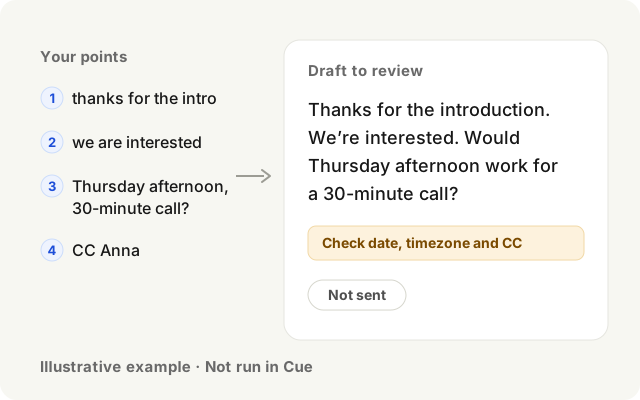
Thanks for the introduction. We’re interested. Would Thursday afternoon work for a 30-minute call?
Check: Confirm the date and timezone. Add the correct Anna to CC and check all recipients.
Draft only — no recipients set and no email sent.
- thanks for the intro
- we are interested
- ask if Thursday afternoon works for a thirty-minute call
- and CC Anna
Materials you provide
Focus the reply field. Provide relevant context and facts you may share.
What happens next
- Focus the reply field and provide context you may share.
- Dictate the points for your reply draft.
- Check recipients, CC, dates, facts and tone; send it yourself.
Check before you use it
- Verify the recipients and CC before you send.
- Check dates, times and time zones against your calendar.
- Confirm every fact and commitment in the draft is one you meant to make.
- Read the tone once as the recipient would.
The full prompt
Reply to this: thanks for the intro, we are interested — ask if Thursday afternoon works for a thirty-minute call, and CC Anna.
Copying only copies text; it does not import or run a task. Prepare your materials and follow the steps.
Open in Cue
Task import needs a compatible Cue version. Review it in Cue before creating a new draft. Nothing runs automatically.
If your app only opens, copy the prompt above or update Cue. Download or update Cue
About this example
An illustrative, unsent draft. Check recipients and dates before sending.
Template: email-reply
Turn rough meeting notes into follow-ups
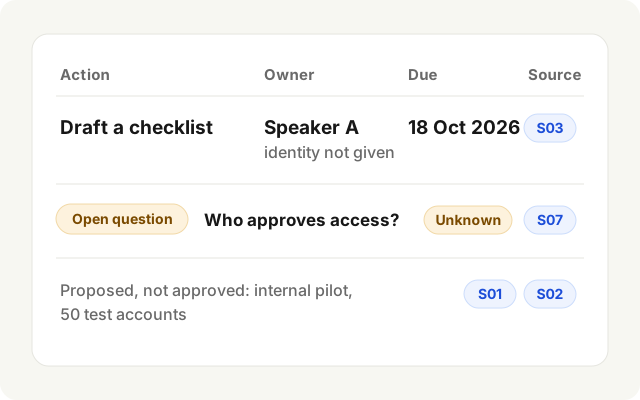
Example outcome: an action-list draft and follow-up email text for you to review.
Action list · draft
- Action
- Draft a checklist
- Owner
- Speaker A identity not given
- Due
- 18 Oct 2026
- Source
- S03
Open question Who approves access? Owner unknown S07
Proposed, not approved Internal pilot for 50 test accounts S01 S02
S03 Speaker A will draft a checklist by October eighteenth, twenty twenty-six.
S07 Nobody has been assigned to approve access.
Materials you provide
Provide permitted meeting notes; include the date when relevant. Remove unnecessary details.
What happens next
- Request decisions and actions, with references to your notes.
- Confirm owners and deadlines; keep missing or conflicting details flagged.
- Check facts and recipients before sending the follow-up yourself.
Check before you use it
- Check every owner and deadline against what was actually said in the meeting.
- Remove action items nobody agreed to.
- Verify the recipients of the follow-up email and read it as the team will.
The full prompt
Draft meeting actions and a follow-up email for review. Cite each action’s source; flag missing or conflicting owners/dates for confirmation. Invent nothing; never send messages or overwrite notes.
Copying only copies text; it does not import or run a task. Prepare your materials and follow the steps.
Open in Cue
Task import needs a compatible Cue version. Review it in Cue before creating a new draft. Nothing runs automatically.
If your app only opens, copy the prompt above or update Cue. Download or update Cue
About this example
An illustrative example from fictional notes; not a Cue screenshot.
Template: meeting-notes-followups
Refactor code by voice
Describe the change like you would to a colleague; Cue edits the code in your editor and explains what it touched.
Template: refactor-by-voice
Materials you provide
Open a file with a function that has grown too long — in Cursor, VS Code, or your editor of choice. Leave the cursor inside it.
The full prompt
Extract the retry logic into its own function, add a max-attempts argument, and update the call sites.
Copying only copies text; it does not import or run a task. Prepare the materials and follow the steps below.
Open in Cue
Task import needs a compatible Cue version. Review it in Cue before creating a new draft. Nothing runs automatically.
If your app only opens, copy the prompt above or update Cue. Download or update Cue
What happens next
- Cue reads the code around your cursor and the rest of the file
- It performs the extraction, threads the new argument, and updates every call site
- It summarizes the diff so you can review before committing
What you get back
The refactor applied in your editor, with a short summary of what changed — ready to diff and commit.
Check before you use it
- Read the whole diff, not just the summary, including every call site it touched.
- Run the tests before you commit.
- Look for behaviour changes hidden in the extraction: defaults, error handling, retries.
Polish selected text anywhere
Select any rough sentence and have it rewritten in place — same meaning, cleaner writing, no copy-paste round trip.
Template: polish-anywhere
Materials you provide
Open any draft with a clumsy paragraph — an email, a doc, a Notes entry. Select the sentences you want to fix and leave them selected.
The full prompt
Polish this — keep my meaning, make it tighter.
Copying only copies text; it does not import or run a task. Prepare the materials and follow the steps below.
Open in Cue
Task import needs a compatible Cue version. Review it in Cue before creating a new draft. Nothing runs automatically.
If your app only opens, copy the prompt above or update Cue. Download or update Cue
What happens next
- Cue captures the selected text and the app it lives in
- The fast path rewrites it for clarity while keeping your voice and intent
- The polished version replaces the selection right where it was
What you get back
The same paragraph, tightened and typo-free, sitting exactly where the rough one was.
Check before you use it
- Read the rewrite against your original: the meaning, names and numbers must not have shifted.
- Check that it still sounds like you before you keep it.
- If the selection sat inside an email or a form, confirm nothing outside it changed.
Translate without switching apps
Turn selected text into another language in place — replies, docs, or messages — without opening a translator tab.
Template: translate-inline
Materials you provide
Open a page, email, or message in another language — or a reply you drafted that needs to go out in one. Select the text.
The full prompt
Translate this to English and keep the tone.
Copying only copies text; it does not import or run a task. Prepare the materials and follow the steps below.
Open in Cue
Task import needs a compatible Cue version. Review it in Cue before creating a new draft. Nothing runs automatically.
If your app only opens, copy the prompt above or update Cue. Download or update Cue
What happens next
- Cue picks up the selection and the app around it
- It translates with register intact — formal stays formal, casual stays casual
- The translation appears in place, ready to read or send
What you get back
A natural translation where the original text was — no tab switch, no lost formatting.
Check before you use it
- Have someone who reads the target language check names, numbers, dates and idioms.
- Confirm the register fits the recipient: formal stays formal, casual stays casual.
- Legal, medical or financial wording needs a qualified translator before it goes out.
Draft a structured page in Notion
Keep a Notion text field focused, speak a messy idea, and get headings, bullets, and next steps as a draft to review.
Template: thought-to-notion
Materials you provide
Open the Notion page where the draft belongs and place the cursor in its text field. Have a real idea you can think out loud for twenty seconds.
The full prompt
Turn this into a structured page: we should launch a beta waitlist — perks for early users, a simple signup form, and a three-email drip. Draft the sections.
Copying only copies text; it does not import or run a task. Prepare the materials and follow the steps below.
Open in Cue
Task import needs a compatible Cue version. Review it in Cue before creating a new draft. Nothing runs automatically.
If your app only opens, copy the prompt above or update Cue. Download or update Cue
What happens next
- You keep the target Notion page and text field focused while you speak
- Cue turns the idea into draft headings, bullets, and an action list using the details you supplied
- You review the structure, owners, and wording in Notion before you keep or share it
What you get back
A structured draft — overview, sections, next steps — ready for you to verify and edit.
Check before you use it
- Check every owner and next step against what you actually decided.
- Remove anything Cue inferred that you did not say.
- Review the page yourself before you share it with the team.
Turn a spoken idea into a social post
Say the idea like you would tell a friend; get a post shaped for the platform, ready to review before publishing.
Template: spoken-social-post
Materials you provide
Open the compose box on X or LinkedIn. Know the one point you want the post to make.
The full prompt
Write this as a post: we just cut our export time from four minutes to nine seconds — and the fix was one database index.
Copying only copies text; it does not import or run a task. Prepare the materials and follow the steps below.
Open in Cue
Task import needs a compatible Cue version. Review it in Cue before creating a new draft. Nothing runs automatically.
If your app only opens, copy the prompt above or update Cue. Download or update Cue
What happens next
- Cue reads the compose box context to know which platform it is writing for
- It drafts the post hook-first, sized and toned for that feed
- The draft is typed into the compose box for you to review
What you get back
A publishable draft in the box — hook first, tight, in your voice. You still press Post.
Check before you use it
- Check every fact and figure in the post against your source before you publish.
- Make sure the tone fits the platform and the audience.
- Remove anything confidential: customer names, unreleased numbers, internal links.
Dictate an Outlook email
Keep the message body focused, use your configured Dictation hotkey, speak, then review the draft text before you decide whether to send it.
Template: dictate-in-outlook
Materials you provide
Open Outlook, start a new email or reply, and place the cursor in the message body where you want text to appear.
The full prompt
Thanks for the update. Thursday at 2 PM works for me. Please send the agenda beforehand.
Copying only copies text; it does not import or run a task. Prepare the materials and follow the steps below.
Open in Cue
Task import needs a compatible Cue version. Review it in Cue before creating a new draft. Nothing runs automatically.
If your app only opens, copy the prompt above or update Cue. Download or update Cue
What happens next
- You keep the Outlook message body focused before dictating
- Cue turns your speech into text from the configured Dictation hotkey
- Review the draft in Outlook before choosing whether to send it
What you get back
Your spoken text appears in the Outlook draft for you to review and edit.
Check before you use it
- Read the dictated text for misheard names, numbers and times.
- Check the recipients and subject line yourself before sending.
- Fix punctuation and paragraph breaks where the dictation ran on.
Voice type in Google Docs
Keep the document focused, use your configured Dictation hotkey, speak, then review the text before you continue writing.
Template: voice-typing-google-docs
Materials you provide
Open a Google Doc and place the cursor where you want text to appear.
The full prompt
Project update: the draft is ready for review. The review date has not been confirmed.
Copying only copies text; it does not import or run a task. Prepare the materials and follow the steps below.
Open in Cue
Task import needs a compatible Cue version. Review it in Cue before creating a new draft. Nothing runs automatically.
If your app only opens, copy the prompt above or update Cue. Download or update Cue
What happens next
- You keep the Google Doc focused before dictating
- Cue turns your speech into text from the configured Dictation hotkey
- Review the text in Google Docs before you continue writing
What you get back
Your spoken text appears in the Google Doc for you to review and edit.
Check before you use it
- Read the dictated text for misheard words, names and numbers.
- Fix punctuation and paragraph breaks where the dictation ran on.
- Confirm the text landed where the cursor was and did not overwrite anything.
Send a better Slack reply
Speak the key points once and get a short Slack reply draft to review before you send it.
Template: slack-reply
Materials you provide
Keep the relevant Slack messages visible or include the context in your request, then focus the reply box.
The full prompt
Reply: yes to the Tuesday deadline, but the API piece slips to Friday — tag Marco so he sees it.
Copying only copies text; it does not import or run a task. Prepare the materials and follow the steps below.
Open in Cue
Task import needs a compatible Cue version. Review it in Cue before creating a new draft. Nothing runs automatically.
If your app only opens, copy the prompt above or update Cue. Download or update Cue
What happens next
- You choose the visible or supplied context the reply should address
- Cue drafts a concise chat-style answer from those points
- Review the wording and mentions in the reply box before you send it
What you get back
A Slack reply draft in the focused box for you to edit and send.
Check before you use it
- Check the mentions: the right person, in the right channel.
- Confirm the dates and commitments match what you agreed.
- Read it once for tone; chat replies land harder than they read.
Take meeting notes without a bot
Start the desktop recorder when you choose. Nothing joins the call; during longer meetings, Cue shows a progressive transcript draft and creates structured notes after you stop.
Template: meeting-notes-live
Materials you provide
Join the meeting as usual — Zoom, Meet, or an in-person conversation. When you decide to capture it, choose Start in Cue’s desktop recorder; no invite or extra participant is needed.
The full prompt
Start recording for this meeting — decisions, owners, and follow-ups.
Copying only copies text; it does not import or run a task. Prepare the materials and follow the steps below.
Open in Cue
Task import needs a compatible Cue version. Review it in Cue before creating a new draft. Nothing runs automatically.
If your app only opens, copy the prompt above or update Cue. Download or update Cue
What happens next
- Choose Start in Cue’s desktop recorder — nothing joins the meeting
- During a longer meeting, review a progressive transcript draft on your desktop
- When you stop recording, Cue completes the transcript and creates a structured note with action items
What you get back
A completed transcript and structured note with decisions, owners, and next steps — captured without a bot in the room. Ask Cue to draft a follow-up when you want one.
Check before you use it
- Read the transcript for misheard names, numbers and decisions before you rely on the notes.
- Confirm the action items and owners with the people who were there.
- Make sure the participants agreed to the recording under your workplace and local rules.
Explain the error on your screen
Stuck on a stack trace? Ask out loud. Cue reads exactly what is on screen and tells you what broke and where to look.
Template: explain-error
Materials you provide
Reproduce the failure so the error is on screen — a stack trace in the terminal, a red overlay in the browser, a failing test.
The full prompt
What is actually wrong here, and what is the smallest fix?
Copying only copies text; it does not import or run a task. Prepare the materials and follow the steps below.
Open in Cue
Task import needs a compatible Cue version. Review it in Cue before creating a new draft. Nothing runs automatically.
If your app only opens, copy the prompt above or update Cue. Download or update Cue
What happens next
- Cue captures the visible error output and the code context around it
- It traces the likely root cause — not just the last line of the trace
- It explains the fix in plain English, and can apply it if you ask
What you get back
A diagnosis in plain English — cause, file, line, fix — instead of twenty minutes of searching the error text.
Check before you use it
- Repeat the steps that caused the error and confirm it no longer occurs.
- Check that the smallest fix does not just hide the root cause.
- Review any change Cue applied before you commit it.
Create a file set from one request
Ask for the folder structure you need — project scaffolding, doc templates, weekly folders — and watch it appear.
Template: create-file-set
Materials you provide
Open the folder where the new structure should live. Know the shape you want — folders, starter files, naming.
The full prompt
Set up a client folder for Meridian: contracts, invoices, assets, and notes — with a README that lists the contacts I mention.
Copying only copies text; it does not import or run a task. Prepare the materials and follow the steps below.
Open in Cue
Task import needs a compatible Cue version. Review it in Cue before creating a new draft. Nothing runs automatically.
If your app only opens, copy the prompt above or update Cue. Download or update Cue
What happens next
- Cue plans the folder and file tree from your description
- It creates the folders and starter files, filling in the content you dictated
- It opens the finished structure in Finder for a final look
What you get back
The whole structure exists — consistent names, starter files filled in — without typing a single mkdir.
Check before you use it
- Open the created folders and check the names and structure match what you asked for.
- Read the starter files: the contacts and details you mentioned must be spelled correctly.
- Check nothing was created inside the wrong parent folder.
Review a contract for key risks
Open the PDF, ask for the risks. Get a plain-English list of the clauses to question before you sign.
Template: contract-risks
Materials you provide
Open the contract PDF — an NDA, an MSA, a lease. Any document you would otherwise skim and hope for the best.
The full prompt
Read this contract and flag anything unusual — liability, termination, auto-renewal, IP. Rank by risk.
Copying only copies text; it does not import or run a task. Prepare the materials and follow the steps below.
Open in Cue
Task import needs a compatible Cue version. Review it in Cue before creating a new draft. Nothing runs automatically.
If your app only opens, copy the prompt above or update Cue. Download or update Cue
What happens next
- Cue reads the full document, not just the page on screen
- It flags non-standard clauses and one-sided terms against common practice
- It writes a ranked risk memo with clause references
What you get back
A short memo: what is standard, what is not, what to push back on — with clause numbers to bring to your lawyer.
Check before you use it
- Read every flagged clause in the original document, not just the memo.
- Check the clause numbers and quotations match the contract.
- The memo is not legal advice: have a qualified lawyer review the risks before you sign or push back.
- Cue ranks against common practice; weigh each risk against your own situation.
Make sense of a long paper
Forty pages, one question: is this worth my time? Get findings, method, and limits in a scannable brief.
Template: long-paper
Materials you provide
Open the paper — a PDF in the browser or a long report. The denser it is, the better the payoff.
The full prompt
Summarize this: key findings, how they got them, what the limitations are — and whether it applies to consumer apps.
Copying only copies text; it does not import or run a task. Prepare the materials and follow the steps below.
Open in Cue
Task import needs a compatible Cue version. Review it in Cue before creating a new draft. Nothing runs automatically.
If your app only opens, copy the prompt above or update Cue. Download or update Cue
What happens next
- Cue reads the whole document, including the tables and appendix
- It extracts the claims, the method behind them, and the caveats the abstract skips
- It writes a structured brief with page references
What you get back
A one-page brief that answers your actual question — with page numbers for anything you want to verify.
Check before you use it
- Check the key findings and numbers against the pages the brief cites.
- Read the limitations section yourself; a brief can soften them.
- Cite the paper, not the brief, and verify the page references first.
Compare options in a decision table
Three vendors, six criteria, one table. Cue reads the tabs and notes you have open and builds the comparison.
Template: decision-table
Materials you provide
Gather the raw material on screen — pricing pages, notes, quotes. Open the sheet or doc where the table should go.
The full prompt
Build a comparison table for these three tools: price, seats, API, support, migration effort. Mark the winner per row.
Copying only copies text; it does not import or run a task. Prepare the materials and follow the steps below.
Open in Cue
Task import needs a compatible Cue version. Review it in Cue before creating a new draft. Nothing runs automatically.
If your app only opens, copy the prompt above or update Cue. Download or update Cue
What happens next
- Cue collects the claims from the pages and notes you have open
- It normalizes them into the criteria you named — one row each
- It builds the table and marks a per-row verdict
What you get back
A decision table you can defend in a meeting — criteria down the side, options across, winner marked.
Check before you use it
- Check each cell against the page or quote it came from; prices and limits change.
- Confirm the criteria reflect what matters to your team, not only what was easy to compare.
- Ask the vendors to confirm anything you will decide on.
Clean and explain a messy spreadsheet
Inherited a sheet with merged cells and mystery columns? Have it cleaned, labeled, and explained back to you.
Template: messy-spreadsheet
Materials you provide
Open the spreadsheet someone handed you — inconsistent dates, duplicate rows, columns nobody remembers naming.
The full prompt
Clean up this spreadsheet: fix the dates, remove duplicates, split the name column — then tell me what each column actually contains.
Copying only copies text; it does not import or run a task. Prepare the materials and follow the steps below.
Open in Cue
Task import needs a compatible Cue version. Review it in Cue before creating a new draft. Nothing runs automatically.
If your app only opens, copy the prompt above or update Cue. Download or update Cue
What happens next
- Cue profiles the data and lists the problems it found
- It applies the cleanup on a working copy, never the original
- It explains each column and logs every change it made
What you get back
A tidy sheet plus a plain-English data dictionary — and a record of exactly what changed.
Check before you use it
- Compare the cleaned copy with the original: row counts, totals and a sample of rows.
- Check the removed duplicates really were duplicates.
- Verify the data dictionary with whoever owns the columns.
- Keep the original file until you have checked the copy.
Turn requirements into a response checklist
Feed it an RFP or spec; get every requirement as a checkable line, grouped, numbered, with the gaps flagged.
Template: requirements-checklist
Materials you provide
Open the requirements document — an RFP, a security questionnaire, a spec. The kind with a "shall" in every paragraph.
The full prompt
Extract every requirement into a checklist — group by section, and flag the ones we cannot meet today.
Copying only copies text; it does not import or run a task. Prepare the materials and follow the steps below.
Open in Cue
Task import needs a compatible Cue version. Review it in Cue before creating a new draft. Nothing runs automatically.
If your app only opens, copy the prompt above or update Cue. Download or update Cue
What happens next
- Cue parses every must, shall, and required clause in the document
- It groups and numbers them into a checklist you can divide up
- It flags gaps and ambiguities that need a clarifying question
What you get back
A response checklist the whole team can work through — no requirement silently missed on page 34.
Check before you use it
- Read the source document once more and check no requirement was missed or merged.
- Confirm the flagged gaps with the people who own each area.
- Check the numbering matches the source so reviewers can find each line.
- Legal or contractual requirements need a qualified reviewer before you commit to them.
Research a topic and save a brief
Ask the question once; Cue researches across sources and leaves a cited one-page brief in your notes.
Template: research-brief
Materials you provide
Have a question you would otherwise lose an hour to — a market, a technology choice, a competitor. Open the note where the brief should land.
The full prompt
Research how the EU AI Act affects small SaaS companies and save a one-page brief with sources to my notes.
Copying only copies text; it does not import or run a task. Prepare the materials and follow the steps below.
Open in Cue
Task import needs a compatible Cue version. Review it in Cue before creating a new draft. Nothing runs automatically.
If your app only opens, copy the prompt above or update Cue. Download or update Cue
What happens next
- Cue searches and reads multiple sources, not just the first result
- It cross-checks the claims and keeps the citations
- It writes the brief into the note you pointed at
What you get back
A one-page brief with linked sources, saved where you will actually find it — instead of nine open tabs.
Check before you use it
- Open every cited source and check it says what the brief says it says.
- Check dates: rules and prices change, and a source can be out of date.
- For legal or compliance questions, verify the conclusions with a qualified professional before you act.
Batch rename a folder of files
Describe the naming scheme in one sentence; every file in the folder falls in line.
Template: batch-rename
Materials you provide
Open the folder of chaos — screenshots, scans, exports. The kind full of IMG_4032 and final_v2_REAL.
The full prompt
Rename everything here to date first, then a short description — like 2026-07-17-client-invoice. Keep the extensions.
Copying only copies text; it does not import or run a task. Prepare the materials and follow the steps below.
Open in Cue
Task import needs a compatible Cue version. Review it in Cue before creating a new draft. Nothing runs automatically.
If your app only opens, copy the prompt above or update Cue. Download or update Cue
What happens next
- Cue reads the file names and metadata to infer content and dates
- It proposes the full rename mapping before touching anything
- On your go, it applies the scheme across the folder
What you get back
A folder that sorts chronologically and reads like a filing system — in the time it took to describe it.
Check before you use it
- Read the proposed mapping before you approve it; dates and descriptions inferred from content and metadata can be wrong.
- Open a sample of renamed files and check the extensions are intact.
- Keep a backup or version history until you are sure.
Clean up your desktop in one ask
A desktop full of screenshots, PDFs, and installers becomes four tidy folders — with a plan you approve before anything moves.
Template: desktop-cleanup
Materials you provide
A desktop that has become a junk drawer — screenshots, PDFs, installers, three months of it. The messier, the better.
The full prompt
Clean up my desktop: screenshots into one folder, documents by topic, and trash the old installer files.
Copying only copies text; it does not import or run a task. Prepare the materials and follow the steps below.
Open in Cue
Task import needs a compatible Cue version. Review it in Cue before creating a new draft. Nothing runs automatically.
If your app only opens, copy the prompt above or update Cue. Download or update Cue
What happens next
- Cue inventories what is actually sitting on the desktop
- It proposes the folder plan before moving a single file
- On your go, everything sorts itself — installers head to the Trash
What you get back
A desktop with four folders and room to think — and nothing deleted without your say.
Check before you use it
- Review the folder plan before you approve it; look for files that belong somewhere else.
- Check the Trash before you empty it.
- Confirm nothing you need was filed under the wrong topic.
Bring order to your Downloads folder
Group files by type, flag possible duplicates for review, and confirm the archive list before older files move.
Template: downloads-cleanup
Materials you provide
Open Downloads — duplicates, one-time installers, and files from 2024 welcome.
The full prompt
Organize my Downloads: group files by type, flag possible duplicates for my review without deleting them, and ask me to confirm before archiving files older than six months.
Copying only copies text; it does not import or run a task. Prepare the materials and follow the steps below.
Open in Cue
Task import needs a compatible Cue version. Review it in Cue before creating a new draft. Nothing runs automatically.
If your app only opens, copy the prompt above or update Cue. Download or update Cue
What happens next
- Cue scans names, types, and dates across the folder
- It groups files into folders and flags possible duplicates for review
- After you confirm the proposed archive list, older files can be moved to an Archive folder. Do not delete files.
What you get back
Illustrative outcome: files grouped, possible duplicates flagged for review, and the archive list confirmed before any move. Check the actual folder before retrying.
Check before you use it
- Check whether the flagged files really are duplicates. Do not delete files as part of this task.
- Look through the Archive folder for anything you still need at hand.
- Confirm installers you still need were not archived.
Plan a repetitive browser workflow
Describe the steps visible in the current page and get a checklist with confirmation points before any browser or file action.
Template: browser-workflow
Materials you provide
Open the page where the chore happens and select or make visible only the steps you want to plan. Sign in yourself if the site requires it.
The full prompt
Turn the visible steps for last month’s invoice report into a checklist. Stop before any export, download, rename, or move action.
Copying only copies text; it does not import or run a task. Prepare the materials and follow the steps below.
Open in Cue
Task import needs a compatible Cue version. Review it in Cue before creating a new draft. Nothing runs automatically.
If your app only opens, copy the prompt above or update Cue. Download or update Cue
What happens next
- Cue uses only the page details you selected or made visible to draft the sequence
- It marks every step that could export, download, rename, move, submit, or change data
- You review the checklist and perform or confirm each browser and file action yourself
What you get back
A reviewed checklist for the workflow, with consequential browser and file actions left under your control.
Check before you use it
- Walk through the checklist against the real page; steps can be out of order or missing.
- Perform every export, download, rename or move yourself and check the result.
- Sign in and enter any credentials yourself; the checklist should never contain them.
Plan a video study session
Use the title and details visible on a video page to draft a viewing checklist while the media stays on its original platform.
Template: youtube-download
Materials you provide
Select the visible title, description and chapters. Add the source URL, your learning goal and available minutes.
The full prompt
Using only these video details, draft a viewing plan for my goal and available minutes. Keep supplied chapter times, leave space for my own notes, and ask for missing inputs.
Copying only copies text; it does not import or run a task. Prepare the materials and follow the steps below.
Open in Cue
Task import needs a compatible Cue version. Review it in Cue before creating a new draft. Nothing runs automatically.
If your app only opens, copy the prompt above or update Cue. Download or update Cue
What happens next
- Cue uses only the title, description, and chapters you selected or made visible
- It drafts a viewing order and a short note-taking checklist
- You review the plan and use the video platform’s own controls for any viewing decision
What you get back
A viewing-plan draft for your goal and available time. Keep playback on the original platform and add your own notes.
Check before you use it
- Check the source URL, chapter titles and supplied times against the visible page.
- Check planned minutes against your budget; do not infer activity duration from chapter timestamps.
- Write and save your notes yourself. Provide them again when you want to review.
Write a daily brief without losing conflicting dates
Fictional text practice · Not run in Cue
When your meeting note, email excerpt and task list disagree, a useful daily brief should expose the disagreement—not choose a plausible date. This exercise is for coordinators preparing their own next actions from a small, explicitly supplied source pack.
The materials and answer key below are invented editorial examples, not customer data or Cue output. No calendar, inbox or shared history is automatically available. You can practice on the text alone without granting a model access to an account.
Make a three-source packet
Use only material you are authorized to share. Label each excerpt and retain its date and line numbers. Omit unrelated messages and personal information. When real materials include recorded conversations, obtain the appropriate participant consent before recording or sharing them.
S1 — Planning note, 2026-10-19
L1: Proposed demo: 2026-10-23 at 14:00. Time zone not specified.
L2: Lee will prepare a two-page outline before the demo.

S2 — Organizer email excerpt, 2026-10-20
L1: The October 23 slot is not confirmed. Please do not send invitations.
L2: I will confirm the date and time zone later.

S3 — Task list, 2026-10-20
L1: Outline draft exists; review is still pending.
L2: Accessibility check has no assigned owner.
Draft in three passes
- Provide these exact excerpts in one message. If using files, first verify that the interface can access every supplied file; a filename alone is not evidence of readable content. Keep the source packet available for comparison.
- Ask for the brief with the prompt below. Do not ask the model to find more sources, open your inbox or act on the calendar.
- Follow every cited line back to the packet. Check that tentative dates remain tentative, drafting does not become approval, and missing ownership stays missing.
Copyable prompt
Use only S1, S2 and S3 supplied here. Do not browse or access another app.
Return a brief of at most 180 words with three headings:
Known state; Conflicts and missing information; Proposed next actions.
Attach a source ID and line number to every factual statement. Separate
proposed actions from facts; label any suggested owner as a suggestion.
Preserve full dates and unknown time zones. A later source does not prove
all earlier facts are obsolete: identify exactly which claim it qualifies.
Do not invent an approval, appointment, owner or deadline. Include a
coverage checklist for all six source lines. Flag missing material.
Return a draft only: do not send invitations, update tasks or overwrite files.
Illustrative answer key — not an observed result
Known state: Lee is to prepare the outline [S1:L2]. A draft exists, but review remains pending [S3:L1].
Conflicts and missing information: 2026-10-23 at 14:00 was proposed without a time zone [S1:L1]. The organizer says the slot is unconfirmed and asks that invitations not be sent [S2:L1]; date and time zone confirmation are still pending [S2:L2]. The accessibility check has no assigned owner [S3:L2].
Proposed next actions: Ask the organizer to confirm the slot and time zone; request outline review; ask who should own the accessibility check. These are suggestions, not completed actions or accepted assignments.
| Source line | Coverage check |
|---|---|
| S1:L1 | Proposed slot; time zone unknown. |
| S1:L2 | Lee prepares outline. |
| S2:L1 | Slot unconfirmed; no invitations. |
| S2:L2 | Confirmation pending. |
| S3:L1 | Draft exists; review pending. |
| S3:L2 | Accessibility owner unassigned. |
Check before you use it
- A citation can still be wrong: verify its meaning, not only its presence. This packet cannot establish a confirmed meeting or a review deadline.
- If the draft chooses a time zone or announces completion, ask: “Remove unsupported certainty. Quote the supplied line supporting each date, status and owner; otherwise mark it unknown.” If sources are missing, add them explicitly and request a changed-claims list. Review that list before replacing your earlier brief. Keep external actions for a separate human decision.
Choosing a model without inventing an integration
This is a text-grounded exercise. Gemini 4 Argon's API documentation includes text input and text output, making it a candidate to evaluate; multimodal support does not mean it can see your inbox. Google model documentation.
Cue's exact production route for this task has not been verified. For any GPT, Claude or Gemini selection, keep the same packet and checks; do not infer quality, account access or third-party subscription rights from a model name. This article reports no model comparison or successful Cue run.
Sources reviewed in the supplied research snapshot: October 21, 2026. For an app failure, share the version and a non-sensitive error description through support, not the original private source pack. Next: write and verify a draft brief before taking any action.
Copy the full practice packet
FICTIONAL TEXT PRACTICE MATERIAL — NOT A CUE RUN

Use only S1, S2 and S3 supplied here. Do not browse or access another app.
Return a brief of at most 180 words with three headings:
Known state; Conflicts and missing information; Proposed next actions.
Attach a source ID and line number to every factual statement. Separate
proposed actions from facts; label any suggested owner as a suggestion.
Preserve full dates and unknown time zones. A later source does not prove
all earlier facts are obsolete: identify exactly which claim it qualifies.
Do not invent an approval, appointment, owner or deadline. Include a
coverage checklist for all six source lines. Flag missing material.
Return a draft only: do not send invitations, update tasks or overwrite files.

SUPPLIED SOURCE PACKET
S1 — Planning note, 2026-10-19
L1: Proposed demo: 2026-10-23 at 14:00. Time zone not specified.
L2: Lee will prepare a two-page outline before the demo.

S2 — Organizer email excerpt, 2026-10-20
L1: The October 23 slot is not confirmed. Please do not send invitations.
L2: I will confirm the date and time zone later.

S3 — Task list, 2026-10-20
L1: Outline draft exists; review is still pending.
L2: Accessibility check has no assigned owner.
Copying only copies text; it does not import or run a task. Prepare your materials and follow the steps.
Open in Cue
Task import needs a compatible Cue version. Review it in Cue before creating a new draft. Nothing runs automatically.
If your app only opens, copy the prompt above or update Cue. Download or update Cue
Template: daily-brief
Generate a slide deck from one ask
Say the topic and the occasion; Cue writes a complete presentation as a web page and opens it ready to present.
Template: html-presentation
Materials you provide
Have the topic and the occasion in mind — a pitch, a class, a weekly review. Nothing needs to be open yet.
The full prompt
Build a presentation about our office move — timeline, floor plan highlights, and an FAQ slide. Dark theme.
Copying only copies text; it does not import or run a task. Prepare the materials and follow the steps below.
Open in Cue
Task import needs a compatible Cue version. Review it in Cue before creating a new draft. Nothing runs automatically.
If your app only opens, copy the prompt above or update Cue. Download or update Cue
What happens next
- Cue writes the deck as a real web page — layout, typography, content
- Slides get structure: sections, speaker notes, keyboard navigation
- The finished deck opens in your browser, ready to present
What you get back
A presentation running in the browser — arrow keys to present, print to PDF to share.
Check before you use it
- Read every slide for facts, dates and names before you present.
- Open the deck in the browser you will present from and step through it once.
- Replace placeholder content with your real numbers and sources.
Turn a folder of photos into a shareable page
Point at a folder of photos; get a clean gallery page you can send — layout, sections, and captions handled.
Template: photos-to-page
Materials you provide
Open the folder with the photos — a trip, an event, a product shoot. A dozen images is plenty.
The full prompt
Turn these photos into a simple gallery page called Kyoto Weekend — group by day, add short captions.
Copying only copies text; it does not import or run a task. Prepare the materials and follow the steps below.
Open in Cue
Task import needs a compatible Cue version. Review it in Cue before creating a new draft. Nothing runs automatically.
If your app only opens, copy the prompt above or update Cue. Download or update Cue
What happens next
- Cue reads the folder and sorts the photos by time and content
- It builds a clean gallery page with sections and captions
- It opens the finished page in your browser for a look
What you get back
A shareable gallery page built straight from the folder — done before you would have picked a template.
Check before you use it
- Check the captions and day grouping against what actually happened.
- Remove photos of people who did not agree to be shared.
- Open the page on a phone before you send the link.
Build a one-page website from a description
Describe the page like you would brief a freelancer; Cue writes the files and opens the result in your browser.
Template: one-page-site
Materials you provide
Have a clear one-liner of what the page is for — a launch teaser, an event invite, a portfolio intro. Nothing needs to be open yet.
The full prompt
Build a one-page site for a pottery workshop: hero with the date, three photo slots, a short about section, and a signup link.
Copying only copies text; it does not import or run a task. Prepare the materials and follow the steps below.
Open in Cue
Task import needs a compatible Cue version. Review it in Cue before creating a new draft. Nothing runs automatically.
If your app only opens, copy the prompt above or update Cue. Download or update Cue
What happens next
- Cue plans the sections from your description
- It writes the page and its styles into a local folder
- It opens the page in Chrome so you can react to something real
What you get back
A working page you can iterate on out loud — real files on disk, not a mockup.
Check before you use it
- Check the date, address and signup link are correct.
- Open the page at phone width before you share it.
- Replace placeholder images and text with your own.
Turn notes into a presentation outline
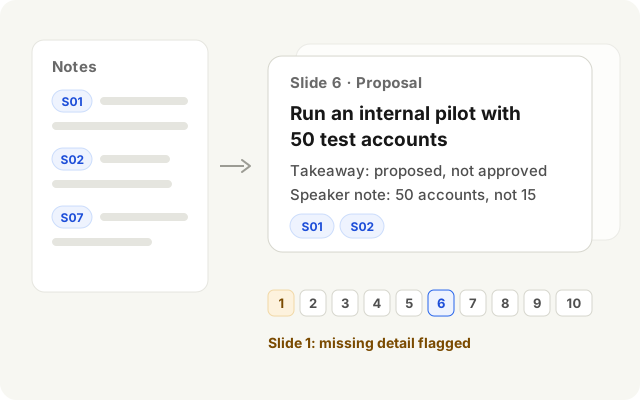
An outline to review: ten slide titles, takeaways, speaker notes and source references.
Ten-slide outline · 3 of 10 shown
- 1
- 2
- 3
- 4
- 5
- 6
- 7
- 8
- 9
- 10
S01 This is a fictional project exercise. For the internal pilot, plan for fifty test accounts, not fifteen.
S02 The pilot is proposed, not approved.
S07 Nobody has been assigned to approve access.
Materials you provide
Choose notes you may share. Tell Cue the audience and decision needed, and provide the relevant excerpts.
What happens next
- Provide the notes you may share.
- Request ten slides with takeaways and speaker notes.
- Check sources and missing details before sharing.
Check before you use it
- Check claims, names and numbers against the cited notes.
- Keep missing details visible; remove unsupported promises.
- Read speaker notes aloud before sharing.
The full prompt
Turn these notes into ten slides: problem, evidence, proposal, ask. Include a title, takeaway and speaker note per slide. Cite the source section for factual claims; mark missing details. Do not send or publish.
Copying only copies text; it does not import or run a task. Prepare your materials and follow the steps.
Open in Cue
Task import needs a compatible Cue version. Review it in Cue before creating a new draft. Nothing runs automatically.
If your app only opens, copy the prompt above or update Cue. Download or update Cue
About this example
An illustrative example from fictional notes; not a Cue screenshot.
Template: notes-to-presentation